Short on time? For a sound Google Analytics 4 set-up, plan what you need to measure first, install the tag through a tag manager, use automatically collected and recommended events before custom ones, mark the few events that matter as key events, link Search Console and advertising accounts, set consent and data retention, filter internal traffic and document every change. Test before relying on the numbers.
Many websites run analytics that nobody fully trusts. Events have inconsistent names, conversions are counted twice, internal traffic inflates the numbers and nobody remembers what was changed last year. Decisions on budgets and content then rest on shaky data.
Google Analytics 4, known as GA4, is built around events: every interaction is recorded as an event with parameters. A tidy event design and a few governance habits make the data reliable. Product details change from time to time, so check current documentation for exact menus and limits. This guide explains the principles and a practical set-up, for a small business site and for a multi-brand organisation.
Key takeaways
- Start with measurement questions and a plan, and add tags afterwards.
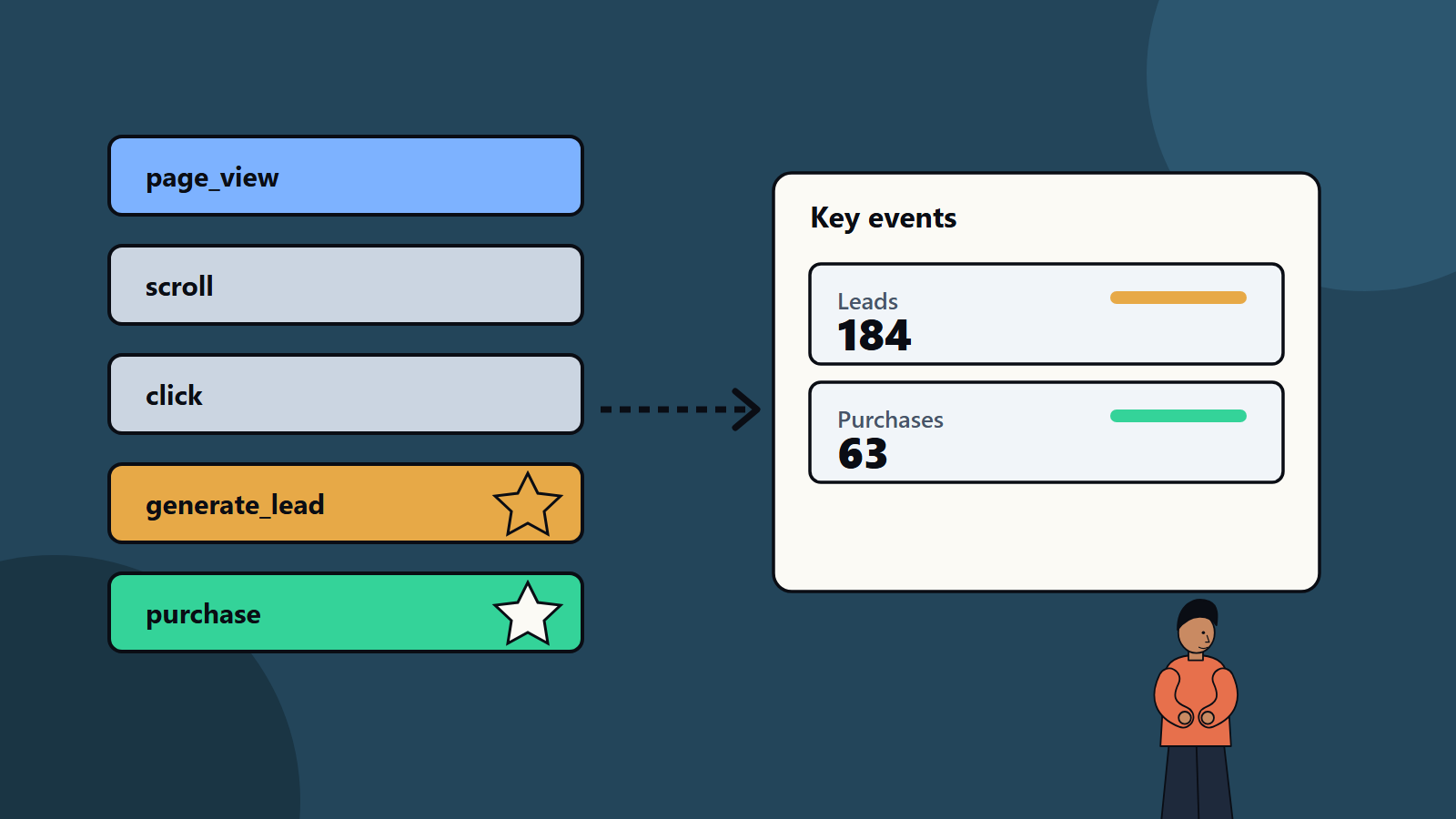
- Use automatically collected, enhanced measurement and recommended events first. Create custom events only when nothing else fits.
- Mark only the events that matter most as key events.
- Set up consent, data retention, internal traffic filters and cross-domain tracking carefully.
- Govern the setup: naming standards, change logs, access control and regular audits.
Start with a measurement plan
Before touching settings, write down:
- Business goals: leads, sales, sign-ups, engagement, support deflection.
- Questions to answer: which channels bring valuable visitors? Where do people drop out of the sign-up flow? Which content leads to enquiries?
- Key actions: the events that show success, such as form submissions, purchases or demo bookings.
- Audiences and segments: new versus returning, regions and customer types.
- Systems to connect: advertising platforms, search tools, CRM and data warehouse.
- Privacy rules and consent approach for the countries you serve.
A one-page plan listing each business question, the event or metric that answers it and who owns it keeps the setup focused.
Understand events
Google’s documentation on events in Analytics describes the types:
- Automatically collected events, gathered by default once Analytics is set up.
- Enhanced measurement events, such as scrolls, outbound clicks, site search, video engagement and file downloads, collected when enhanced measurement is turned on.
- Recommended events, which you implement yourself but which use predefined names and parameters, unlocking existing and future reporting features.
- Custom events, which you define yourself. Google advises creating them only when no other event fits, since they generally do not appear in standard reports and need custom reports or explorations.
The practical rule: use the standard names wherever one exists, for example for sign-ups, purchases and lead generation.
Key events
Key events are events tied to actions that matter most to your business. As the documentation puts it, any event you collect can become a key event. Once marked, Analytics records them and shows how many users performed the action. These were previously called conversions in the product, and you may still see that term in older material and in advertising tools.
Guidelines:
- Mark a small number, typically a handful.
- Choose actions close to value: completed purchase, submitted enquiry, booked demo, started trial.
- Avoid marking engagement events, such as scrolls, as key events, since they dilute the signal.
- Set values for events where possible, such as order value, so you can compare channels.
- Make sure the event fires once per action, even when a page reloads.
Set-up checklist
1. Create the property and data streams
- Create a property for each distinct site or app, or group related ones carefully. Avoid over-splitting.
- Add a web data stream for the site and app streams if needed.
- Name properties and streams clearly.
- Set the correct time zone and currency.
2. Install the tag
Use a tag management system to deploy the Analytics tag and any custom events, which avoids hard-coding in pages. This gives version control, preview modes and easier changes. Limit who can publish.
3. Turn on enhanced measurement
Review which options to enable, and consider whether they overlap with custom tracking you plan to build. Disable anything you will track better another way.
4. Implement events
- Recommended events for forms, purchases and sign-ups, using standard parameters.
- Custom events for needs not covered, with clear names, such as lowercase words with underscores, and a documented list of parameters.
- User properties for stable attributes such as customer type, used with care and consent.
- Event parameters registered as custom dimensions or metrics if you need to report on them, within platform limits.
5. Mark key events
Select your chosen few. Test that they count correctly.
6. Cross-domain and subdomain tracking
If users move between domains, such as a main site and a checkout or booking system, configure cross-domain measurement so sessions are not split and sources are not overwritten.
7. Filter internal and developer traffic
Define internal traffic by IP ranges or other methods, and apply filters so that staff visits do not distort data. Test filters in a testing state before making them active.
8. Exclude unwanted referrals and bots
List payment providers and other domains whose referrals should not replace the true source. Review bot and spam traffic patterns.
9. Link other Google products and ad platforms
Connect search performance data, advertising accounts and any data warehouse export. Align campaign tagging between ad platforms and analytics, using consistent parameters for source, medium and campaign. Our guide to performance marketing measurement explains why channel attribution needs several views.
10. Configure data settings
- Data retention: set the event data retention period appropriate to your needs and privacy policy.
- Data collection and user-level controls: review settings for signals and personalised advertising features, according to your policies and legal advice.
- Data redaction of identifiers such as emails in URLs.
- Access and roles: grant the minimum access, and use named accounts, with no shared logins.
11. Handle consent and privacy
Laws such as the GDPR and similar rules elsewhere set conditions on cookies and tracking, and they differ by country. Use a consent management tool, and make sure analytics respects choices, including modes that adjust data collection when consent is not given. Keep personal data out of event parameters, and avoid sending sensitive information. Document your approach and review it with privacy counsel.
12. Test and validate
- Use preview and debug tools to check that events fire once, with the right parameters.
- Compare numbers with source systems, such as order counts in your shop or leads in your CRM, and explain differences.
- Test on different browsers and devices, and with consent on and off.
- Check that key events appear in reports and in linked ad platforms.
Governance
Naming and taxonomy
Agree a naming convention and event dictionary: event name, when it fires, parameters, owner and status. Keep it in a shared document. Use consistent names across sites and apps, so data can be combined.
Change control
- Log every change to tags, events and settings, with date, person and reason.
- Test in a staging environment or preview before publishing.
- Use versioning in your tag manager.
- Annotate major changes in analytics reports so shifts in numbers can be explained.
Roles and access
- Name an owner for analytics and a backup.
- Review user access quarterly, and remove people who have left.
- Limit admin rights.
Audit and maintenance
- Run a quarterly audit: broken events, unexpected drops or spikes, unused custom definitions, consent issues and data quality.
- Check quotas and limits for custom definitions and exports.
- Review whether reports still answer the business questions.
- Keep up with product changes, since menus, names and features evolve.
Data export and retention
For deeper analysis, export data to a warehouse, where it can be joined with CRM and finance data. Plan storage, access and cost. Our guide to data analytics maturity can help judge when this step is worthwhile.
Reporting that people use
- Build a small set of dashboards tied to the measurement plan. See our guide to business intelligence dashboards that people use.
- Use explorations for analysis and funnels for key journeys.
- Share definitions of metrics.
- Pair numbers with qualitative insight.
Common mistakes
- Installing the tag and doing nothing else.
- Too many custom events with inconsistent names.
- Marking every event as a key event.
- Double counting through duplicate tags.
- No filter for internal traffic.
- Ignoring consent rules.
- Sending personal data in parameters.
- No documentation or owner.
- Never auditing.
A first-month plan
- Week 1: write the measurement plan and event dictionary.
- Week 2: set up property, streams, tag manager and standard events.
- Week 3: add key events, filters, cross-domain tracking and links to other tools.
- Week 4: test thoroughly, set up consent, document and train users.
How SoftSapien supports analytics
SoftSapien’s analysts set up, audit and govern analytics, connect it to advertising and CRM data and build dashboards that guide decisions. See our digital experience and data analytics services.
To review your set-up, visit the contact page and chat with our team, send a message or schedule a free consultation call.
Frequently asked questions
What are GA4 key events?
Key events are events tied to the actions that matter most to your business, such as purchases or lead submissions. They were previously called conversions in the product.
Should I create custom events?
Use automatically collected, enhanced measurement and recommended events first. Create custom events only when nothing else fits, since they often need custom reports.
Why filter internal traffic?
Staff and developer visits can distort data, so define internal traffic and apply filters after testing them.
How do I keep analytics trustworthy?
Keep an event dictionary and naming standard, log changes, test before publishing, control access and audit quarterly.
Can SoftSapien audit our analytics?
Yes, from set-up to dashboards. Contact SoftSapien through the contact page to chat with our team, send a message or schedule a free consultation call.