Short on time? Optimise a PC game by measuring first. Set frame time targets for a few reference machines, profile the processor and graphics card separately, fix the biggest costs, budget memory, remove stutter from shader compilation and loading, offer sensible graphics settings and retest on low, mid and high hardware before every release.
A console player buys one machine. A PC player might own a ten-year-old laptop, a gaming desktop with a very recent graphics card or a handheld with a small battery. The same game has to feel good on all of them, or at least on the range you promise on the store page.
That is the core challenge of PC optimisation: wide hardware variety and no single target. This guide covers how to set targets, find the real bottleneck, manage memory, remove stutter and offer settings that help players help themselves. It suits a solo developer shipping a first game and a studio supporting a large catalogue.
Key takeaways
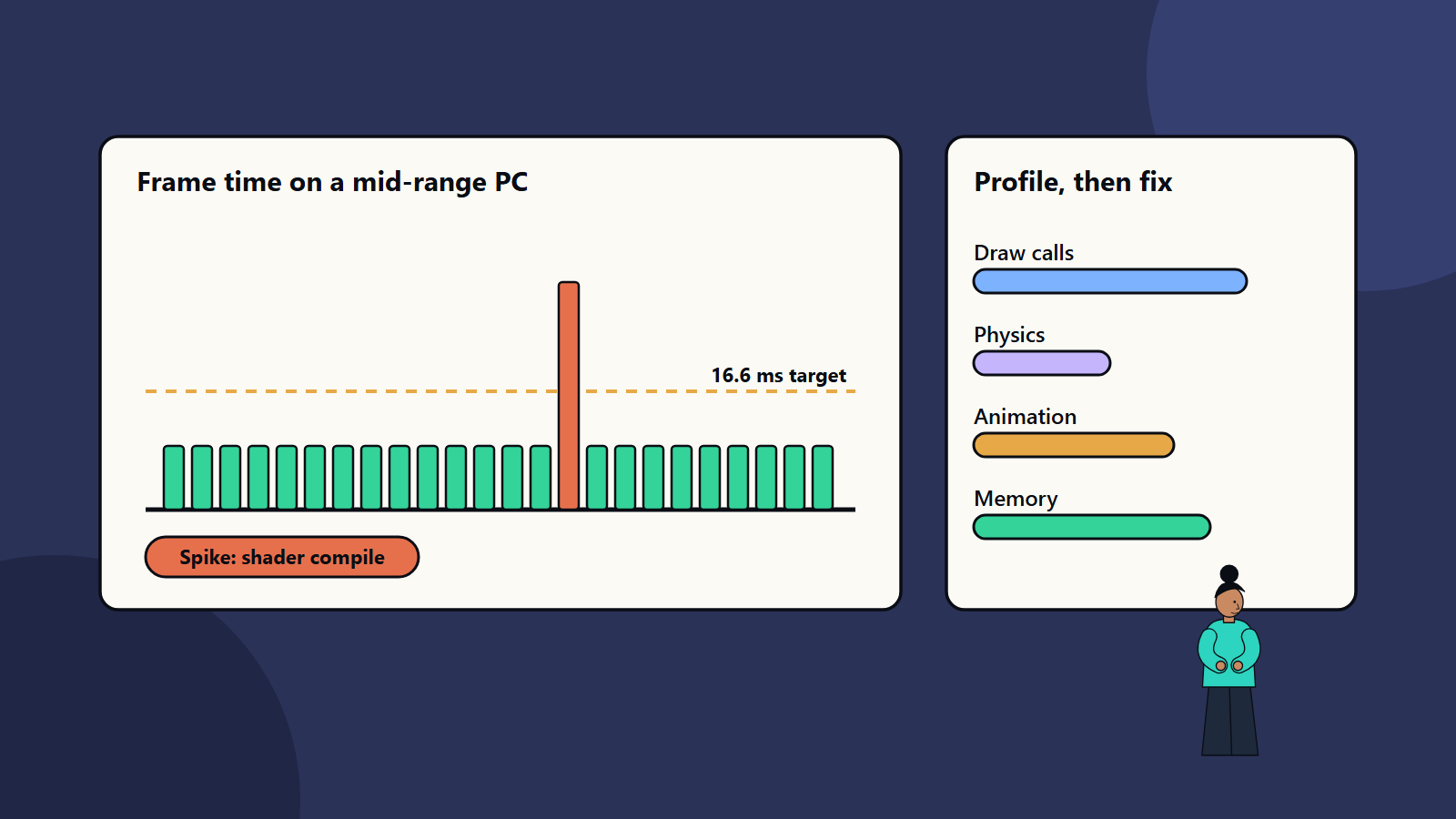
- Think in frame time, in milliseconds, since it shows cost directly: 60 frames per second means about 16.6 milliseconds per frame.
- Pick reference machines for minimum, recommended and high settings, and test on real hardware.
- Profile before changing anything, and find out whether the processor or the graphics card limits you.
- Stutter often matters more than average frame rate, and shader compilation, loading and memory spikes are frequent causes.
- Good settings menus and honest system requirements reduce refunds and support requests.
Understand the hardware range
The Steam Hardware and Software Survey is a public monthly snapshot of what players actually use. It lists many different graphics cards, processors, memory sizes, screen resolutions and operating systems. The lesson for a team is simple: your own development machine is not typical. Check the current survey for your market, and decide which slice of it you want to support.
Write that decision down as three tiers:
- Minimum: the weakest machine on which the game is playable, with a stated resolution and frame rate.
- Recommended: the machine for which the default settings were tuned.
- High: the machine that runs the top settings and higher resolutions.
Keep one real machine for each tier, plus a laptop and, if you support it, a handheld PC. Test on them, since emulating a weaker machine by capping clocks never matches real behaviour.
Think in frame time
Frame rate hides the cost of each part of a frame. Frame time shows it:
- 30 frames per second is about 33.3 milliseconds per frame.
- 60 frames per second is about 16.6 milliseconds.
- 120 frames per second is about 8.3 milliseconds.
Set a budget for the target and divide it among systems: game logic, physics, animation, rendering, audio and the operating system. When a new feature costs three milliseconds, you can see at once what it takes from everything else. The same budgeting habit applies to our guide on game physics.
Find the bottleneck
A frame is produced by the processor preparing work and the graphics card drawing it. Whichever finishes last sets the pace. The fix depends on which one that is:
- Processor bound: the graphics card waits for instructions. Look at draw call counts, animation, physics, artificial intelligence, scripting and garbage collection.
- Graphics bound: the processor waits for the card. Look at resolution, overdraw, shader complexity, shadows, post-processing and texture size.
- Memory bound: data moves too slowly, or the video memory is full and assets swap.
A quick test: lower the resolution. If the frame rate rises sharply, the graphics card was the limit. If it barely moves, look at the processor. Then use the profilers that ship with your engine and with the graphics vendors’ tools to see the real numbers. See our comparison of game engines for the tooling each offers.
Common graphics wins
- Reduce draw calls with batching, instancing and fewer unique materials.
- Level of detail: swap distant models for cheaper versions, and cull what the camera cannot see.
- Texture budgets: use compression and mipmaps, and size textures for how they appear on screen.
- Shadows and lighting: limit the number of dynamic lights, and lower shadow resolution or distance on lower tiers.
- Post-processing: keep effects that earn their cost, and make the rest optional.
- Resolution scaling: render at a lower internal resolution and upscale, using a vendor or engine upscaler where available.
Common processor wins
- Run expensive work on worker threads when the engine allows it.
- Spread heavy tasks, such as pathfinding, across several frames.
- Reuse pooled objects each frame, so you avoid creating and destroying them, which reduces garbage collection pauses.
- Update far-away or hidden objects less often.
- Keep data laid out for cache-friendly access in hot loops.
Budget memory
Memory problems show up as crashes, stutter and slow loading. Two budgets matter:
- System memory, shared with the operating system and other programs. Plan for players who run a browser and a chat program beside your game.
- Video memory, on the graphics card. When it fills, textures swap in and out and the frame time spikes.
Set a budget for each asset category, such as textures, meshes, audio and animation, and check it in every build. Track peak use as well as averages, and test long sessions to find leaks, since a game that is fine at ten minutes may fail at three hours.
Remove stutter
Players forgive a steady 45 frames per second more readily than an average of 60 with frequent hitches. Frequent causes:
- Shader compilation during play. Precompile or cache shaders, and warm them during loading or the first launch.
- Asset streaming that loads on the main thread. Move it to background threads and load ahead of need.
- Garbage collection spikes from allocations in per-frame code.
- Disk speed: a game tuned on a fast solid-state drive can hitch on a slow hard drive. Test on both if you support both.
- Background tasks such as autosave or analytics that run on the main thread.
Record frame time graphs during real play and look for spikes as well as the mean.
Give players useful settings
A good graphics menu lets players tune the game to their machine:
- Presets for low, medium, high and a custom option.
- Separate controls for resolution, window mode, frame rate cap, shadows, textures, effects and upscaling.
- A short description of what each setting costs.
- A frame rate counter option.
- A benchmark scene for comparing settings.
- Sensible automatic detection for the first launch, with an easy way to change it.
Publish honest system requirements in terms of what you tested: the resolution and frame rate each tier delivers. Vague requirements bring negative reviews and refunds.
Test and keep watch
- Run automated performance captures on a fixed route in every build, and flag regressions against the budget.
- Test low, mid and high reference machines before release, and different drivers.
- Test with a clean install, since cached shaders and files hide first-run problems.
- Monitor crash and performance reports after launch, and patch the biggest problems first.
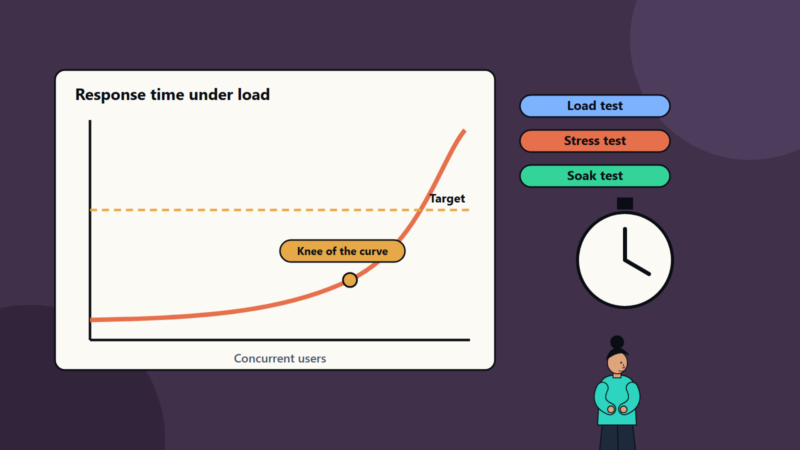
Our guide to performance testing explains load, stress and soak testing, and the ideas carry across to games. For where optimisation fits in the schedule, see the game development pipeline.
Common mistakes
- Optimising by guesswork without a profile.
- Testing only on the development machine.
- Chasing average frame rate and ignoring stutter.
- Leaving optimisation to the final month.
- Ignoring video memory limits.
- Unclear or optimistic system requirements.
- No settings menu, or one with a single quality slider.
A starting plan
- Define three hardware tiers and gather a real machine for each.
- Set a frame time budget for the target frame rate.
- Add an automated performance capture to the build.
- Profile the worst scenes, and fix the largest costs first.
- Remove the top sources of stutter.
- Build a settings menu and test every preset.
- Publish requirements based on measured results.
How SoftSapien supports PC game optimisation
SoftSapien’s game engineers and testers profile builds, set performance budgets, fix bottlenecks and run compatibility passes across hardware tiers, with automated captures that catch regressions early. See our game development and QA and testing services.
To get your game running smoothly across more machines, use the contact page to chat with our team, send a message or schedule a free consultation call.
Frequently asked questions
What frame rate should a PC game target?
Pick targets per hardware tier. Many teams aim for 60 frames per second, about 16.6 milliseconds per frame, on recommended hardware, with lower targets on minimum hardware and higher ones on strong machines.
How do I tell if the processor or graphics card is the bottleneck?
Lower the resolution. If the frame rate rises sharply, the graphics card was the limit. If it barely moves, look at the processor, then confirm with a profiler.
Why does my game stutter with a good average frame rate?
Common causes are shader compilation during play, asset loading on the main thread, garbage collection spikes and slow storage. Record frame time graphs and look for spikes.
Which hardware should we test on?
Keep real machines for minimum, recommended and high tiers, plus a laptop and a handheld PC if you support it. Check the public Steam survey for what your market uses.
Can SoftSapien help optimise our game?
Yes, with profiling, budgets and compatibility passes. Contact SoftSapien through the contact page to chat with our team, send a message or schedule a free consultation call.