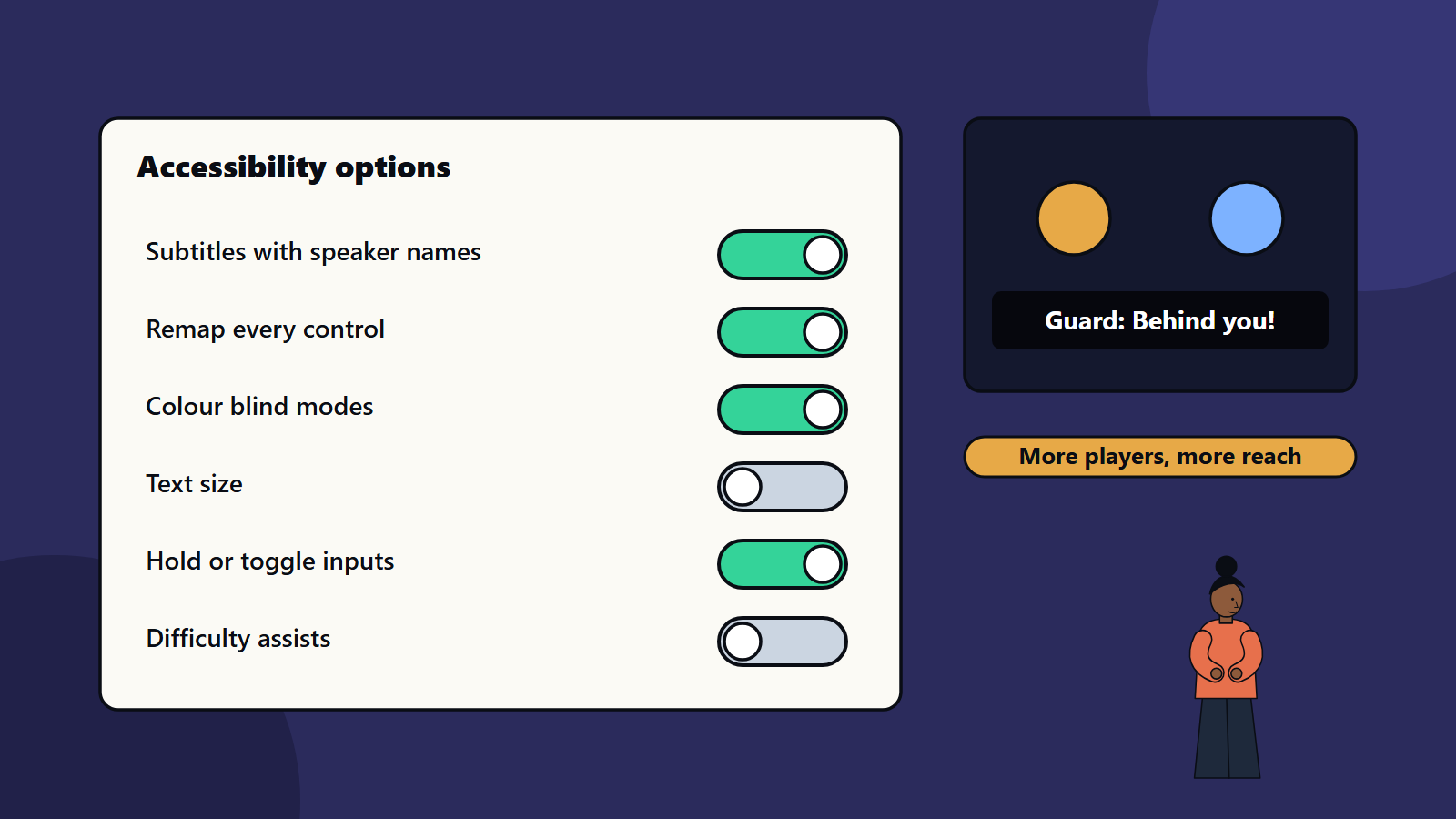
Short on time? Accessible games let more people play. Start with the basics: subtitles with good readability, full control remapping, no reliance on colour alone, adjustable text size, volume sliders and difficulty assists. Use the Game Accessibility Guidelines as a checklist, involve disabled players in testing and build options in early, since retrofitting is costly.
Roughly speaking, anyone can find a game hard to play at some point: a player with a broken wrist, someone in a noisy train carriage, a person with low vision or a parent holding a baby in one arm. Accessibility options help all of them, and for some players they decide whether the game can be played at all.
This guide explains practical accessibility features for games on mobile, PC and console. It suits a solo developer adding a settings menu and a studio planning inclusive design from the first prototype.
Key takeaways
- Accessibility widens your audience and improves play for everyone.
- Cover the main areas: vision, hearing, motor, cognitive and communication needs.
- The Game Accessibility Guidelines offer a free, tiered reference from basic to advanced.
- Plan options early, test with disabled players and describe features honestly on store pages.
- Basic features are cheap when designed in, and costly when added at the end.
A reference to follow
The Game Accessibility Guidelines are a reference for inclusive game design, produced by a collaboration of studios, specialists and academics. They organise guidance into basic, intermediate and advanced levels. Basic items are easy to implement and wide-reaching, intermediate items need some planning and advanced items are complex adaptations for profound impairments and specialised mechanics. Use the basic list as your minimum, and move up as your project allows.
Platform holders also publish their own accessibility guidance and may expect certain features, so check each platform’s documentation. See our guide to console game development.
Vision
- Do not rely on colour alone: pair colour with shape, icon, pattern or text. Offer colour blind modes or customisable colours for important signals.
- Contrast: make text and key interface elements stand out from backgrounds, and let players adjust it.
- Text size: use a readable default, and allow resizing. Small text on a television viewed from a sofa is a common failure.
- Scalable interface: let players enlarge or move interface elements.
- Screen reader and narration support for menus where the platform allows.
- Audio cues for important visual events, and clear audio description options where story demands it.
- Reduce visual clutter, and offer ways to highlight objectives or enemies.
Hearing
- Subtitles for all speech, on by default where practical, with a good size, strong contrast, a background panel and speaker names.
- Captions for important sounds, such as an enemy approaching from behind.
- Visual alternatives to audio-only signals, such as a flashing icon or directional indicator.
- Separate volume sliders for music, effects and dialogue. See game audio.
- Mono audio option for players who hear on one side.
- No essential information in audio alone.
Motor and physical
- Full control remapping on every platform, including menus.
- Alternatives to holding and repeating: toggle or hold choices, and options that avoid rapid button mashing.
- Simple inputs: avoid requiring many buttons at once, precise timing or complex gestures, or offer assists.
- Adjustable sensitivity and dead zones.
- Support for alternative controllers and adaptive hardware where possible.
- Generous touch targets on mobile, and one-handed play options.
- Adjustable timing: longer windows for quick-time events or an option to skip them.
- Pause anywhere, or save at any moment.
Cognitive and learning
- Clear tutorials that players can repeat and review.
- Objective reminders and a quest log.
- Adjustable difficulty and assist modes, such as more time, extra health or hints.
- Reduce simultaneous demands: avoid many rapid events at once.
- Consistent interface and language, and plain, short instructions. See UI and UX design practice.
- Options to turn off effects that distract, such as screen shake and heavy motion.
- Avoid flashing: rapid flashes can trigger seizures in some players. Follow recognised guidelines on flashing content, and provide a warning and an option to reduce effects.
- Motion sickness settings: field of view, head bob, camera smoothing and motion blur controls.
Communication in multiplayer
- Text chat as well as voice, and options to mute or filter.
- Quick communication wheels and pings.
- Speech to text and text to speech support where available.
- Safe reporting tools. See multiplayer netcode and related online design.
Design it in early
- Include accessibility in the design document and the schedule from the beginning.
- Build an options menu that is itself accessible, with clear labels and navigation.
- Choose engines and middleware that support what you need. See game engines compared.
- Create reusable components for subtitles, remapping and scaling, so every title benefits. Reuse ideas from design systems.
- Save settings per player, and apply them on first launch where platforms provide system preferences.
- Test early, since late changes can break layouts and balance.
Test with disabled players
Automated checks and team playtests miss real problems. Invite players with different needs to test, pay them fairly and listen to their feedback. Specialist accessibility consultants and community groups can help. Add accessibility to your QA plan. See game testing and QA.
Communicate clearly
List accessibility features on the store page and in the settings menu, in plain words. Accurate descriptions help players decide, and avoid refunds from disappointment. Update the list as features change.
The business case
Accessible games reach more players, earn better reviews and often improve usability for everyone, as subtitles and remapping show. Some regions also have accessibility laws that cover digital products and services, so check the rules for your markets.
Common mistakes
- Adding accessibility only at the end.
- Colour as the only signal.
- Tiny, low-contrast subtitles.
- Remapping that skips menus.
- Treating difficulty assists as a sign of weakness.
- No testing with disabled players.
- Overclaiming accessibility on the store page.
A starting plan
- Read the basic level of the Game Accessibility Guidelines, and mark what applies.
- Build a settings menu with subtitles, remapping, text size, volume sliders and colour options.
- Add a difficulty assist and reduced motion options.
- Test with disabled players before beta.
- Publish a clear feature list, and keep improving.
How SoftSapien supports accessible games
SoftSapien’s designers, developers and testers audit games against recognised guidelines, build accessibility features and run inclusive playtests across mobile, PC and console. See our game development and UI and UX design services.
To make your game open to more players, use the contact page to chat with our team, send a message or schedule a free consultation call.
Frequently asked questions
What are the first accessibility features to add?
Subtitles with good readability, full control remapping, no reliance on colour alone, adjustable text size, volume sliders and difficulty assists.
Where can I find a checklist?
The Game Accessibility Guidelines are a free reference with basic, intermediate and advanced levels, produced by studios, specialists and academics.
Is accessibility expensive?
Basic features are cheap when designed in early and costly to retrofit, so plan them from the first prototype.
How should we test accessibility?
Invite disabled players and use specialist consultants, pay testers fairly and add accessibility checks to your QA plan.
Can SoftSapien help make our game accessible?
Yes, with audits and features. Contact SoftSapien through the contact page to chat with our team, send a message or schedule a free consultation call.